








In the previous post, I showed how Docker AI Sandboxes stop the credential theft attack at the filesystem level. The defense works, but the setup was manual: choose a network policy, add the IAM Identity Center domain to the allowlist, disable telemetry with sbx exec, and reset the tool trust with /tools reset. That’s fine for one developer, but it doesn’t scale to a team. Everyone needs to arrive at the same configuration independently, and nothing enforces that they do.
Docker Sandbox Kits solve that. A Kit is a shareable, versioned configuration that sets up the sandbox the same way for every developer on the team — network policies, MCP servers, tool settings, all of it — with a single command.
What Are Docker Sandbox Kits
Note: Docker Sandbox Kits are an Early Access feature. The kit file format, CLI commands, and experience for creating, loading, and managing kits are subject to change as the feature evolves.
Kits were introduced in sbx v0.28.0 — the --kit flag and sbx kit subcommand do not exist in earlier versions. Check your version with sbx version and upgrade if needed.
Docker Sandbox Kits are reusable, shareable sandbox configurations. Instead of every developer on your team setting up the sandbox by hand, a Kit packages all of that into a single distributable artifact containing a spec.yaml and any files that should be injected into the sandbox at startup.
A Kit has a simple directory structure:
my-kit/
├── spec.yaml
└── files/
    ├── home/
    │   └── .config/my-tool/settings.json
    └── workspace/
        └── .editorconfig
spec.yaml defines the agent image, entrypoint, install commands, network policy, and which files from the files/ tree get placed into the sandbox. The files/home/ subtree maps to the sandbox home directory; files/workspace/ maps to the mounted project directory.
One important distinction: in practice, each sandbox is tied to a single project, and that project’s files come from git. Anything you put in files/workspace/ would conflict with or duplicate what’s already in the repository. The kit’s job is to configure the sandbox environment around the project — not to replicate project files. files/workspace/ is therefore only useful for files you want injected that are intentionally not part of any repo. User-level configuration belongs in files/home/.
The Kit for This Demo
The kit directory structure:
my-kit/
├── spec.yml
└── files/
    └── home/
        └── .kiro/
            └── settings/
                └── mcp.json
The spec.yml:
schemaVersion: "1"
kind: agent
name: kiro-team
displayName: kiro-team
description: Kiro with my team customizations.

agent:
  image: "docker/sandbox-templates:kiro-docker"
  persistence: persistent
  entrypoint:
    run:
      - "/bin/sh"
      - "-c"
      - >-
        kiro-cli whoami 2>/dev/null ||
        kiro-cli login --license pro
        --identity-provider https://<your-org>.awsapps.com/start
        --region <region>
        --use-device-flow;
        exec kiro

environment:
  variables:
    FASTMCP_LOG_LEVEL: "ERROR"
    AWS_DOCUMENTATION_PARTITION: "aws"
    MCP_USER_AGENT: >-
      Mozilla/5.0 (Windows NT 10.0; Win64; x64) AppleWebKit/537.36
      (KHTML, like Gecko) Chrome/131.0.0.0 Safari/537.36

commands:
  install:
    - command: pip install uv --break-system-packages
    - command: >-
        echo 'kiro-cli settings telemetry.enabled false'
        >> /etc/sandbox-persistent.sh

network:
  allowedDomains:
    - "<your-org>.awsapps.com:443"
    - "docs.aws.amazon.com:443"
    - "**.docs.aws.amazon.com:443"
    - "**.docs.aws.com:443"
A few things worth noting:
persistence: persistent— the sandbox state survives restarts, so Kiro authentication and installed packages don’t need to be repeated on every session.install commands— first installsuvvia pip (the Kiro sandbox image doesn’t include it, but the AWS Documentation MCP server requiresuvxto run). The--break-system-packagesflag is needed because the sandbox runs Debian-managed Python, which blocks plainpip installby default. The second command writes the telemetry opt-out into/etc/sandbox-persistent.sh, which runs on each startup. This solves the persistence problem from the previous post:sbx execwas the manual fix; the Kit automates it.environment.variables— sandbox-level environment variables that the MCP server process inherits automatically. Keeping them here rather than inmcp.jsonavoids duplicating them across projects and keeps the MCP config clean.files/home/.kiro/settings/mcp.json— the user-level Kiro MCP config, injected at startup. Every developer who runs the Kit gets the same MCP setup without copying files manually. The Kiro MCP configuration docs explain that workspace-level.kiro/settings/mcp.jsontakes precedence over the user-level one, so projects can still override this if needed. Themcp.jsonin this kit adds the AWS Documentation MCP server from the AWS Labs MCP servers collection:
{
  "mcpServers": {
    "awslabs.aws-documentation-mcp-server": {
      "command": "uvx",
      "args": ["awslabs.aws-documentation-mcp-server@latest"],
      "disabled": false,
      "autoApprove": []
    }
  }
}
allowedDomains— the AWS IAM Identity Center start URL is pre-allowed, so the login gotcha from the previous post doesn’t apply when running from the Kit. The**.docs.aws.amazon.comand**.docs.aws.comentries cover the AWS Documentation MCP server —**matches any number of subdomain levels recursively (like**.amazonaws.comin the default policies), whereas*only matches one level. Using**avoids having to add individual subdomains as they surface insbx policy log.
Running the Kit
Once the kit is ready, a developer on the team runs one command:
sbx run kiro-team ~/my-team-project-dir --kit ~/my-kit --name my-team-project
On first launch, the sandbox pulls the base image, runs the install commands, and copies the files into place. The login flow starts automatically — the Start URL and region are pre-filled by the entrypoint, so the only interaction required is one Enter keypress to confirm the region and approving the browser SSO handshake. After that first authentication, the refresh token handles subsequent sessions without prompting again.

Login flow with Start URL pre-confirmed and region pre-filled
Once authenticated, Kiro opens directly into the prompt. The trust-all-tools warning from the previous post is gone — tool mode shows auto rather than the forced trust mode the base Kiro template used. The AWS Documentation MCP server is running, telemetry is disabled, and the network policy is already in place.
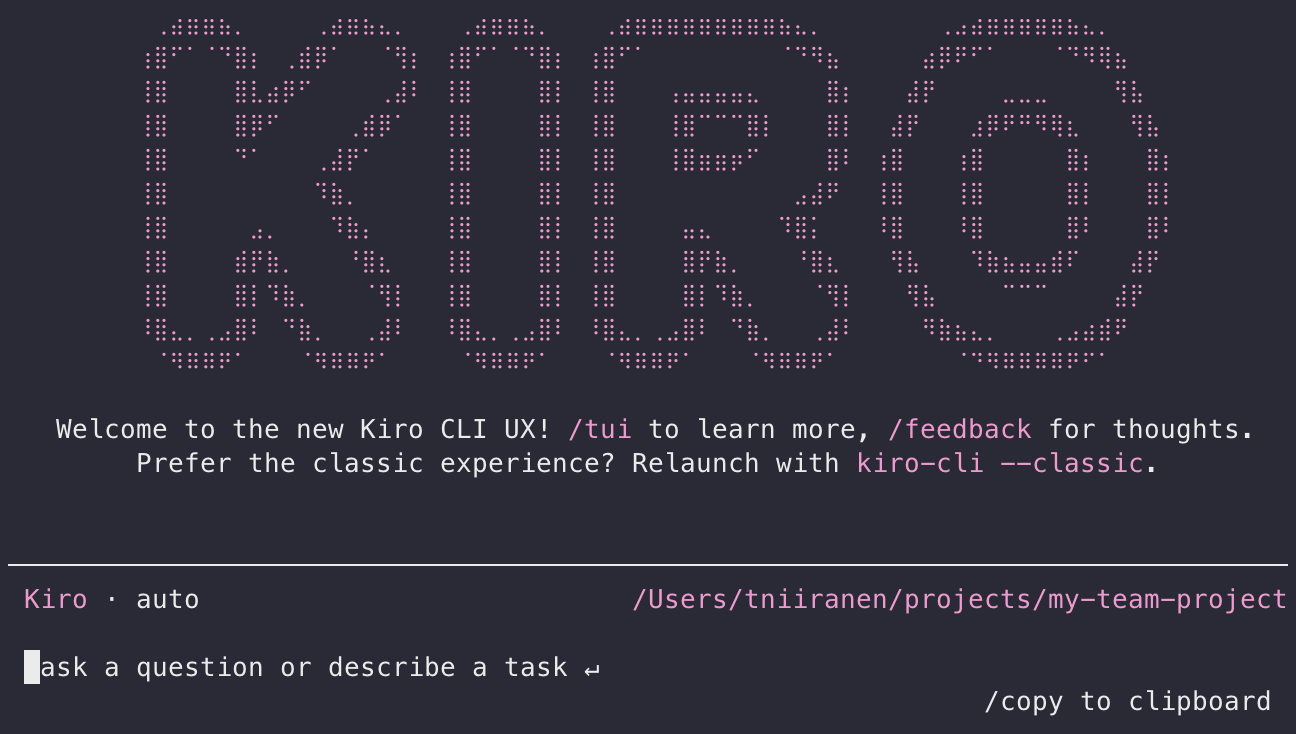
Kiro starts directly into the prompt with no trust-all-tools warning — tool mode shows auto
The /mcp list command confirms the server is running with 4 tools. One thing to note: sbx policy log is useful for discovering which additional domains an MCP server needs at runtime — the AWS Documentation server turned out to reach *.docs.aws.amazon.com and *.docs.aws.com beyond the base docs.aws.amazon.com entry, which only became visible after the first tool calls failed with 401 errors.
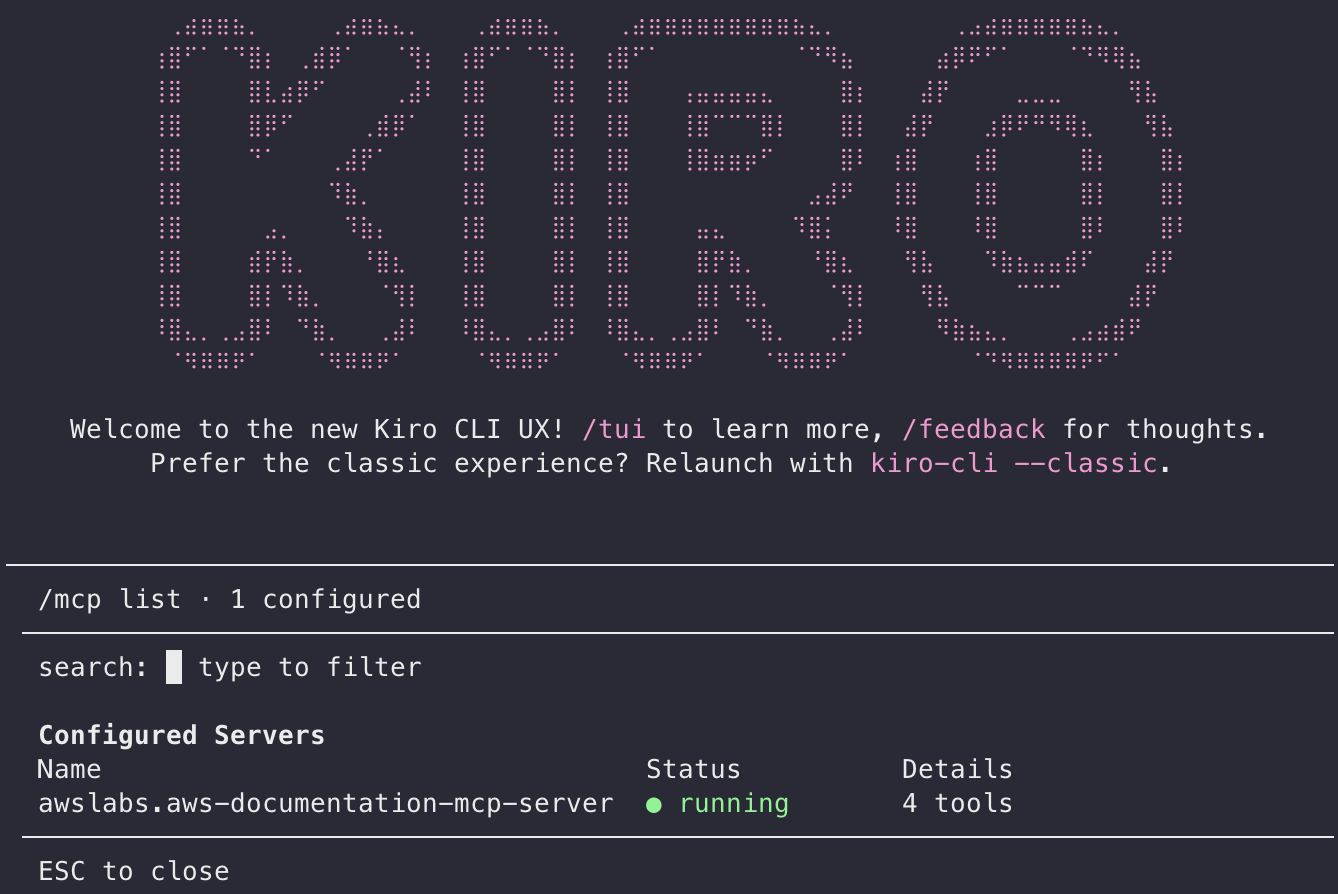
/mcp list showing awslabs.aws-documentation-mcp-server running with 4 tools
A few things worth knowing about the command:
--name— without it, the sandbox is named<agent>-<workdir>(kiro-team-my-team-project-dir), which is redundant. Naming it explicitly keeps things clean.Agent name— must match thenamefield inspec.yml. Built-in names (kiro,claude,codex, etc.) are reserved;sbxwill error with “built-in agents cannot be overridden by a kit” if you try to use one.
Lifecycle and Version Control
The kit source — spec.yml and the files/ tree — is just files, so it belongs in git alongside your other team configuration. Treat it like a base image: changes go through pull requests, releases get tagged, and team members opt into updates deliberately rather than having them applied silently.
Before distributing the kit, validate the spec and inspect what it contains:
sbx kit validate ~/my-kit
sbx kit inspect ~/my-kit
For distribution, there are three options the sbx CLI supports:
ZIP file—sbx kit pack ~/my-kit -o kiro-kit.zip, then share via any file store. Straightforward for small teams.OCI registry—sbx kit push/sbx kit pullwith image tags. Gives you proper versioning:ghcr.io/myorg/kiro-kit:1.0.Git reference— pass a git URL directly to--kit, pinned to a tag or commit:--kit "git+https://github.com/myorg/kiro-kit.git#ref=v1.0".
Personally, I like the git reference style!
The key lifecycle constraint: kit changes cannot be applied to an existing sandbox. To pick up a new kit version, the developer deletes their sandbox and recreates it with the updated kit. This is a deliberate friction point — sandbox upgrades are explicit, not automatic — but it means you should keep installs lightweight and avoid baking in anything that’s painful to recreate.
What the Kit Doesn’t Enforce
The kit sets a consistent starting point. It does not lock everything down.
Network policy can still be overridden. The kit pre-configures allowedDomains, but a developer can run sbx policy allow on their sandbox to add more hosts. If your threat model requires strict network control, document which domains are expected and periodically audit with sbx policy log.
Workspace-level MCP config takes precedence. Kiro’s configuration docs state that .kiro/settings/mcp.json in the project directory overrides the user-level config the kit installs. Projects can extend or replace the team MCP setup — which is intentional flexibility, but it means the kit alone doesn’t guarantee which servers are active.
Summary
Docker Sandbox Kits let you codify your security posture — network restrictions, tool configuration, pre-installed servers — into a single artifact that every developer on the team runs from day one. The Kit is the mechanism, but the real payoff is that security decisions made once actually stick: they don’t depend on developers following setup instructions correctly or remembering manual steps from a previous post. The post also covers what Kits leave unaddressed, because knowing the gaps is just as important as knowing what the tool solves.